Your business,
on autopilot.
One platform for creating, running and growing your business, powered by AI.
How to Join a Discord Server: The Complete Guide (2026)





Joining a Discord server takes about ten seconds when you have an invite link, and considerably longer when you don't. Unlike Instagram or X, Discord has no single "follow" button that works the same way everywhere: every server is a private space by default, and how you get in depends on which of three entry points you're using and whether the server's owner has made it discoverable at all. This guide covers all three ways to join, the exact steps on desktop, iOS, and Android, what to do when Discord blocks you from joining (or from actually talking once you're in), and how joining a paid Discord community differs from joining a free one.
- Invite links are the fastest and most common way in. Click one, hit "Accept Invite," and you're done in under 30 seconds
- No link? Discord's Server Discovery directory lists thousands of public servers by category and search, but only servers whose owners opted in show up there
- Invite links expire or hit a use limit more often than people expect, and "Invite Invalid" doesn't always mean the server itself is gone
- Getting into a server and getting permission to chat in it are two separate steps, thanks to Rules Screening and Discord's verification levels
The 3 Ways to Join a Discord Server
Discord doesn't index every server the way Google indexes public websites. Unless an owner has explicitly opted a server into Server Discovery, the only way in is an invite link someone sends you directly. That single fact is what makes "how do I join a Discord server" a genuinely less obvious question than "how do I follow someone on Instagram."
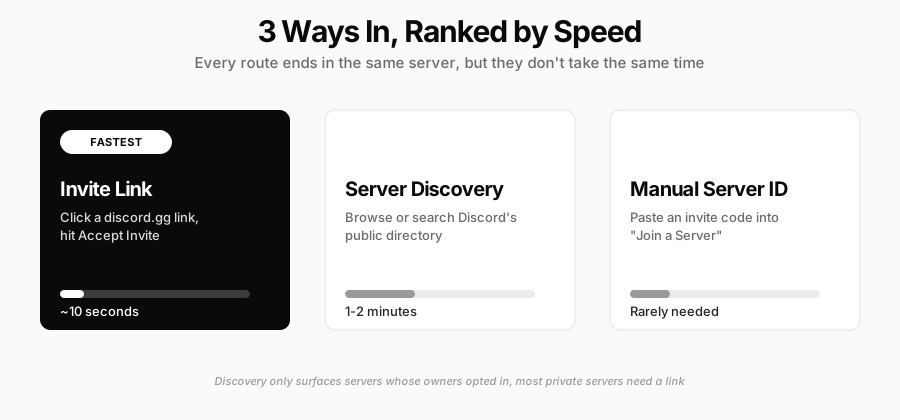
1. Using an Invite Link (fastest, covers most servers)
An invite link looks like discord.gg/xxxxxxx or the longer discord.com/invite/xxxxxxx format. Someone shares it with you in a group chat, a DM, a tweet, or a YouTube video description, and clicking it does almost all the work: Discord opens (the app if you have it installed, the browser otherwise), shows you a preview of the server's name, icon, and member count, and then you click "Accept Invite."
Two things trip people up here:
- Invite links expire. A server owner can set a link to expire after 30 minutes, 1 hour, 6 hours, 12 hours, 1 day, 7 days, or never. A link pasted into an old tweet or an out-of-date video description is the single most common reason a join attempt fails.
- Invite links can also cap at a set number of uses, independent of how much time has passed. A link created for "the next 50 people" stops working the moment person 51 tries it, even five minutes after it was posted.
2. Discord's Server Discovery (when you don't have a link)
Click the compass icon at the bottom of the server list, and you land in Discord's public directory: browse by category (Gaming, Music, Education, Science & Tech, and more) or search by keyword. Only servers whose owners have opted into Discovery appear here, which by Discord's own Discovery Guidelines requires at least 1,000 members, 8 weeks of server age, and active moderation history. That eligibility bar is exactly why Discovery works well for large, established communities and turns up nothing for the small paid server your favorite creator just launched last week.
3. Manually Adding a Server (rare, but useful to know)
If someone gives you a raw invite code rather than a clickable link, click the "+" icon at the bottom of your server list, choose "Join a Server," and paste the code or full URL into the box. This is functionally identical to clicking a link; it just skips the step of Discord auto-detecting the URL for you. Most people never need this path, but it's worth knowing when a code arrives as plain text instead of a working hyperlink.
How to Join a Discord Server on Desktop, iOS, and Android
The steps are nearly identical across platforms, with small differences in where the buttons live.
On Desktop or Browser
- Open the Discord app or go to discord.com in your browser
- Click the invite link you were given, or click the green + icon at the bottom of the server list and choose "Join a Server"
- Paste the invite link or code if it wasn't auto-filled
- Click Join
- If the server uses Rules Screening, read the rules and click I Agree to unlock chat
On iOS
- Tap the invite link (in Messages, Safari, or wherever you received it) to open it directly in the Discord app
- If the app doesn't launch automatically, copy the link, open Discord, tap the + at the top of your server list, and paste it into "Join a Server"
- Tap Join
- Accept Rules Screening if prompted
On Android
- Tap the invite link to open it in the Discord app, or copy it first if the link doesn't trigger an app link automatically
- In the app, tap the + icon and select "Join a Server," then paste the link
- Tap Join
- Accept Rules Screening if the server requires it
What to Do When You Don't Have an Invite Link
If you know a server exists but nobody's sent you a working link, work through these in order:
- Ask the person or account that mentioned it. A creator, streamer, or brand that referenced "our Discord" almost always has the link in their social bio, YouTube description, or a pinned post
- Check Server Discovery, especially for larger, established communities that meet Discord's membership and age thresholds
- Search third-party directories like Disboard or Discadia, which list servers whose owners submitted them independently of Discord's own Discovery program. Coverage and accuracy vary by directory, so treat results as a starting point, not a guarantee the server is still active
- Ask someone already in the server to generate a fresh invite for you. Anyone with the right permission level can create a new link in seconds if the old one expired
Why Can't I Join a Discord Server? 6 Common Errors, Explained
| What you see | What's actually happening | How to fix it |
|---|---|---|
| "Invite Invalid" | The link expired or hit its maximum use count | Ask the sender for a fresh invite link |
| Nothing happens when you click Join | You're at your server limit: 100 servers on a free account, 200 with Discord Nitro | Leave a server you're less active in, then try again |
| "You need to verify your account" | The server's verification level requires a confirmed phone number or email | Verify in User Settings → My Account, then retry the invite |
| "This server is full" | Very rare. Discord raised the default server cap to 25 million members in September 2025, so this only hits the largest servers on the platform | Wait for space to open, or ask an admin about a direct add |
| You were removed and can't rejoin | You were banned, not just kicked | Contact server staff directly; only they can lift a ban |
| The server requires an age-restricted setting you don't match | Your Discord account birthdate doesn't clear the server's age gate | Confirm your birthdate is set correctly in User Settings |
I Joined the Server, But I Can't Send Messages. Here's Why
This is the single most common follow-up question after "how do I join," and it trips up more people than the joining process itself. Landing in a server's member list and being able to actually type in it are two separate gates, not one.
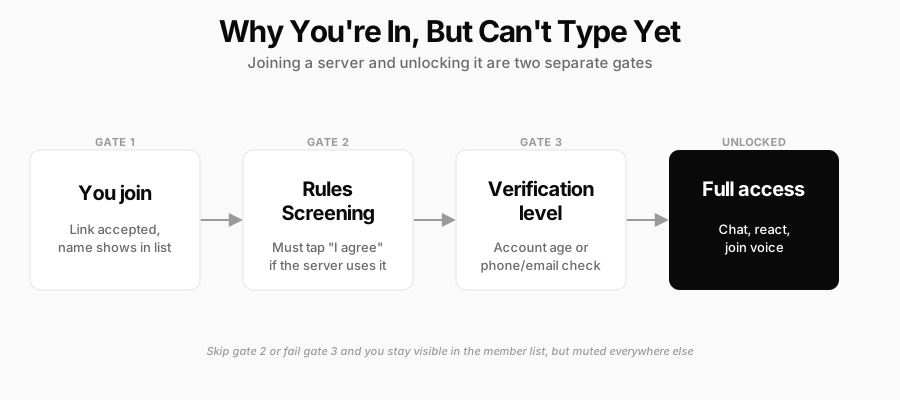
- Rules Screening isn't optional if the server enabled it. Until you tap "I have read and agree" on the rules gate, every channel, reaction, and DM stays locked, even though your name already shows in the member list
- Verification levels can require account age or a verified phone/email, independent of Rules Screening. A server set to "High" verification requires your Discord account to be at least 10 minutes old, which almost never matters, but a server set to require phone verification will block a brand-new account with no phone on file until you add one
- You might already be muted. If you were re-added after a previous timeout or an automod flag, you can technically be "in" the server while still restricted from posting
How to Leave a Discord Server
If you joined the wrong server, or just want out: right-click (or long-press on mobile) the server's icon in your server list, select "Leave Server," and confirm. You can rejoin later with a fresh invite link if the server is still active and you have permission to enter again.
What Nobody Tells You About Joining a Discord Server
- A server owner can quietly kill one invite link without touching anyone already inside. That's why a link that worked for a friend last week can show "Invite Invalid" today even though the server itself hasn't changed at all, someone just rotated the link
- Discord's public member count includes people stuck behind Rules Screening. A server showing "12,400 members" in Discovery can have a meaningfully smaller number of people who ever actually finished the gate and unlocked chat
- Leaving and rejoining resets your join date. If a server uses "time in server" to gate a role or a posting permission, stepping out even briefly puts you back at zero on that clock
Joining a Paid Discord Community Works Differently
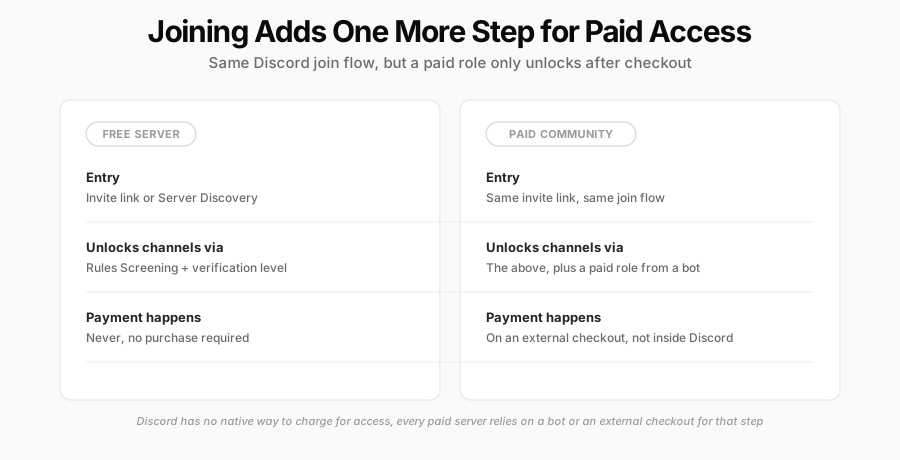
Everything above covers free, public Discord servers. A paid community, the kind creators and businesses sell access to, adds a step Discord itself doesn't natively handle: Discord has no built-in way to charge for server access. What actually gates a paid channel is a third-party bot or an external checkout that verifies your payment and then assigns you a role, and that role, not Discord itself, is what unlocks the members-only channels.
The typical flow looks like: you pay on the seller's checkout page (not inside Discord) → a webhook fires to a bot in the server → the bot assigns you the paid role → the members-only channels appear in your sidebar. You still join the base server the normal way described above; the payment step is what unlocks the parts of it you actually paid for.
This is the half of running a paid Discord community that "how to join" guides usually skip, and it's where Crevio fits in. Crevio is an AI business builder, not a chat platform, so it doesn't replace Discord and isn't trying to: your server stays exactly what it is, a place for members to talk. What Crevio handles is the storefront, Stripe-powered checkout, and customer records behind that access, so when someone pays, they actually show up in a customer list you own and can export, instead of relying on whatever a paywall bot can piece together on its own.
Crevio's free Starter plan (5% transaction fee) is enough to test that setup before committing to anything paid, and the Business plan ($50/month, 1% transaction fee) adds automatic payment retries, which matter more than most rules discussions do: a member who "quietly disappeared" from a paid server often just had a card decline nobody followed up on. If you're weighing a Discord-native paywall bot against a standalone checkout, our comparison of Whop alternatives breaks down where each approach fits, and once people are in, a clear rules template is what keeps a paid server worth staying in.
Getting into a Discord server is the easy part, usually one click. What you build once people are on the other side of that click, and whether you can actually get paid for it, is the part worth spending real setup time on.
FAQ
No. Discord requires a free account, with at least an email or phone number, before you can join any server, even one you have a valid invite link for. Following an invite link without an account first routes you through Discord's sign-up flow.
No. Nitro is a paid subscription that raises your server limit from 100 to 200 and adds cosmetic perks and server boosts, but it has nothing to do with your ability to join any individual server. A free account can join just as many servers as a Nitro one, up to the lower 100-server cap.
Almost always because the link itself expired or hit its maximum number of uses, both settings the server owner controls independently of whether the server is still active. Ask whoever shared the link to generate a new one; regenerating an invite takes them seconds and doesn't affect anyone already inside the server.
Related Blog Posts
What will you sell today?
Describe what you want to sell — Crevio builds, launches, and grows it. Products, payments, and marketing, all on autopilot.
Start for free