Your business,
on autopilot.
One platform for creating, running and growing your business, powered by AI.
YouTube Video Size: The Complete Dimensions Guide for 2026




Upload the wrong YouTube video size and the platform doesn't reject your file: it just makes the decision for you, cropping, padding with black bars, or compressing your video into something softer than what you exported. There's one correct YouTube video size for standard uploads (1920x1080, 16:9), a different one for Shorts (1080x1920, 9:16), and separate specs entirely for thumbnails and channel art. Get any of them wrong and YouTube's player adapts around your mistake instead of showing your work the way you intended.
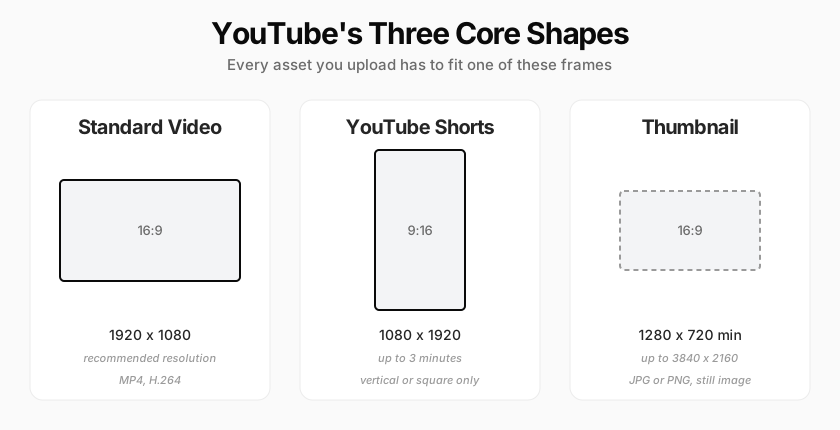
- Standard videos: 1920x1080 pixels, 16:9 aspect ratio, exported as MP4 with H.264
- YouTube Shorts: 1080x1920 pixels, 9:16 aspect ratio, up to three minutes long
- Thumbnails: 1280x720 pixels is the long-standing minimum, but YouTube's current guidance recommends uploading up to 3840x2160 for the sharpest result
- Channel banner: 2560x1440 pixels, with a 1546x423 safe zone that survives every device's crop
YouTube Video Size Quick Reference
| Asset | Resolution | Aspect Ratio | Format |
|---|---|---|---|
| Standard video (recommended) | 1920x1080 | 16:9 | MP4, H.264 |
| Standard video (max supported) | 7680x4320 (8K) | 16:9 | MP4, H.264 |
| YouTube Shorts | 1080x1920 | 9:16 | MP4, H.264 |
| Video thumbnail (minimum) | 1280x720 | 16:9 | JPG or PNG |
| Video thumbnail (recommended) | 3840x2160 | 16:9 | JPG or PNG |
| Channel banner | 2560x1440 | 16:9 | JPG, PNG, GIF, or BMP |
| Profile picture | 800x800 | 1:1 | JPG, PNG, or GIF |
YouTube Video Aspect Ratio and Resolution, Explained
Aspect ratio and resolution get used interchangeably in casual conversation, but they're solving different problems, and mixing them up is where most sizing mistakes start.
Aspect ratio is the shape of the frame: the ratio of width to height. YouTube's player is built around three shapes:
- 16:9 (widescreen), the shape of a standard upload, a TV screen, and most laptop displays
- 9:16 (vertical), the shape of Shorts and how most people hold a phone
- 1:1 (square), used less often but supported for podcast playlists and some Shorts
Resolution is how many pixels fill that shape: 1920x1080 and 3840x2160 are both 16:9, but the second one packs four times the pixel count into the same rectangle. YouTube's own encoding guidance confirms the standard aspect ratio for desktop playback is 16:9, and the player automatically adapts to other shapes rather than forcing them into letterboxed bars, which is exactly why uploading the wrong aspect ratio doesn't throw an error. It just gets center-cropped or pillarboxed, quietly, and you find out from a comment asking why your face is cut off.
One rule that fixes almost every framing complaint: never add your own black bars or padding to force a shape. YouTube's guidance is explicit that manual padding interferes with how the player adapts your video across phones, TVs, and browser windows, so a video you "fixed" to look right on your monitor can end up worse everywhere else.
Best YouTube Video Resolution: 1080p vs 4K vs 8K
There's no single "best" resolution. There's a best resolution for your content and your upload speed. YouTube's official resolution table runs from 240p up to 8K:
| Resolution Name | Pixel Dimensions |
|---|---|
| 8K (4320p) | 7680x4320 |
| 4K (2160p) | 3840x2160 |
| 2K (1440p) | 2560x1440 |
| HD (1080p) | 1920x1080 |
| HD (720p) | 1280x720 |
| SD (480p) | 854x480 |
| SD (360p) | 640x360 |
| SD (240p) | 426x240 |
For the overwhelming majority of channels, 1080p is still the right target. It's sharp on every screen size that matters, it uploads and processes faster than 4K, and YouTube re-encodes everything into multiple resolutions anyway, so viewers on a slow connection get a 480p or 720p version automatically regardless of what you uploaded. Shooting and exporting in 4K only pays off if you plan to crop or reframe in post (common for talking-head videos where you punch in during editing) or your audience specifically watches on large TV screens.
8K is supported but rarely worth the file size and processing time it costs: YouTube itself started scaling back playback support between 4K and 8K in 2022, which tells you where the platform expects most viewing to actually happen.
Bitrate: The Setting Everyone Forgets
Resolution gets all the attention, but bitrate (how much data encodes each second of video) is what actually determines whether your 1080p upload looks crisp or smeared during fast motion. YouTube's recommended upload encoding settings specify:
| Resolution | Standard Frame Rate (24-30fps) | High Frame Rate (48-60fps) |
|---|---|---|
| 4K (2160p) | 35-45 Mbps | 53-68 Mbps |
| 1440p | 16 Mbps | 24 Mbps |
| 1080p | 8 Mbps | 12 Mbps |
| 720p | 5 Mbps | 7.5 Mbps |
If you export at 1080p but your editing software defaults to a 2-3 Mbps bitrate to save file size, the resolution number on the file is meaningless: you'll get soft, blocky motion regardless of what the dimensions say. Check your export preset's bitrate, not just its resolution.
YouTube Shorts Video Size and Dimensions
Shorts use a completely different canvas from standard uploads: 1080x1920 pixels, a 9:16 vertical aspect ratio. YouTube's Shorts documentation confirms 9:16 delivers better performance than landscape footage cropped down, because it fills the entire phone screen instead of leaving letterboxing above and below.
Two specs trip people up constantly:
- Length: YouTube expanded Shorts to three minutes in 2024 for any vertical or square upload, up from the original 60-second limit. Content recorded directly in the YouTube app still caps at 60 seconds, but anything you upload as a finished file can run up to three minutes and still qualify as a Short.
- Shape: Square (1:1) and vertical uploads under three minutes both get classified as Shorts. Landscape uploads never do, regardless of length, so a 16:9 video edited down to 90 seconds still lands in your regular video tab, not Shorts.
If your only footage is landscape, cropping the center out to 9:16 works in a pinch, but it throws away everything on the left and right edges of frame. Shooting vertical natively, or leaving extra headroom when you shoot horizontal so you can reframe later, produces a noticeably better Short than a center-crop afterthought.
YouTube Thumbnail Size Guide
The number most creators know is 1280x720, and it still works: it's the long-standing minimum YouTube has accepted for custom thumbnails, at 16:9. What's changed is what YouTube recommends beyond that minimum.
YouTube's current thumbnail documentation now recommends a resolution of 3840x2160 for standard videos and 2160x3840 for Shorts, with a minimum width of 640 pixels, rather than treating 1280x720 as the target. Most "YouTube thumbnail size" guides online still quote only the older 1280x720 figure, which isn't wrong, but it's the floor, not the ceiling: YouTube explicitly says to upload the largest image you have, since it gets used as the preview across search, suggested videos, and the embedded player at whatever size the layout needs.
Practically, that means:
- 1280x720 is a safe minimum that will display correctly everywhere
- 3840x2160 (or any properly scaled 16:9 image with more pixels) gives YouTube more to work with as it renders your thumbnail smaller or larger across different placements
- File size caps at 2MB on mobile and 50MB on desktop, and only JPG or PNG are accepted
Whichever resolution you export at, keep the aspect ratio locked to 16:9 (9:16 for Shorts thumbnails). A thumbnail exported at the wrong ratio gets stretched or cropped by YouTube's layout the same way a mis-sized video does.
YouTube Channel Banner and Profile Picture Size
Channel art is the one YouTube dimension most creators get technically right and functionally wrong, because the banner isn't shown at one size: it's cropped differently on desktop, mobile, and TV.
- Upload size: 2560x1440 pixels, 16:9, minimum accepted is 2048x1152
- Safe zone: roughly 1546x423 pixels, centered. Anything outside this zone (text, your face, a logo) can get clipped depending on the device
- File limits: JPG, PNG, GIF, or BMP, up to 6MB
The safe zone matters more than the full canvas. Design your banner assuming only the center strip is guaranteed visible, and treat the wider 2560x1440 image as background that fills in gracefully on the devices that do show more of it. A banner that looks perfect on your desktop monitor with text near the edges will very likely have that text sliced off on someone's phone.
Profile pictures are simpler: 800x800 pixels, square, displayed as a circle, so keep important detail away from the corners.
File Format, Codec, and Bitrate Settings for YouTube
Getting the pixel dimensions right doesn't help if the underlying file format works against you. YouTube's recommended settings are specific:
- Container: MP4, with the "moov atom" at the front of the file (most export presets called "Fast Start" or "Web Optimized" handle this automatically)
- Video codec: H.264, High Profile, progressive scan (never interlaced)
- Audio codec: AAC-LC, stereo, 48kHz sample rate
- Frame rate: match what you recorded. Don't convert 30fps footage to 60fps in post: it doesn't add real information and can introduce stutter
MP4 with H.264 and AAC audio is also what most editing software defaults to, so in practice this is less "change your settings" and more "confirm your export preset hasn't been changed to something else."
How to Resize a Video for YouTube in 4 Steps
If you've already recorded or edited a video at the wrong size, you don't need to reshoot it. Every major editor, and several free browser tools, can reframe existing footage to a new aspect ratio.
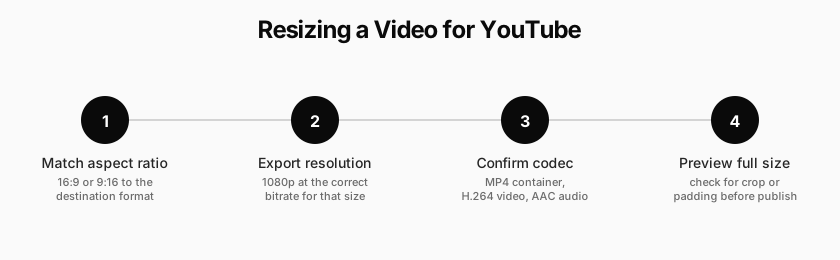
- Decide the destination first. A standard upload needs 16:9. A Short needs 9:16. Pick the format before you touch the crop tool, since reframing for the wrong shape means redoing the work.
- Reframe, don't just stretch. Stretching a 16:9 video into 9:16 distorts every face and object in frame. Crop and reposition the visible area instead, even if that means losing content at the edges.
- Export at 1080p with the bitrate table above. Matching the resolution but ignoring bitrate is the most common reason a "correctly sized" video still looks soft.
- Preview at actual size before publishing. YouTube Studio's preview player catches cropping and padding issues that are easy to miss in your editor's timeline view.
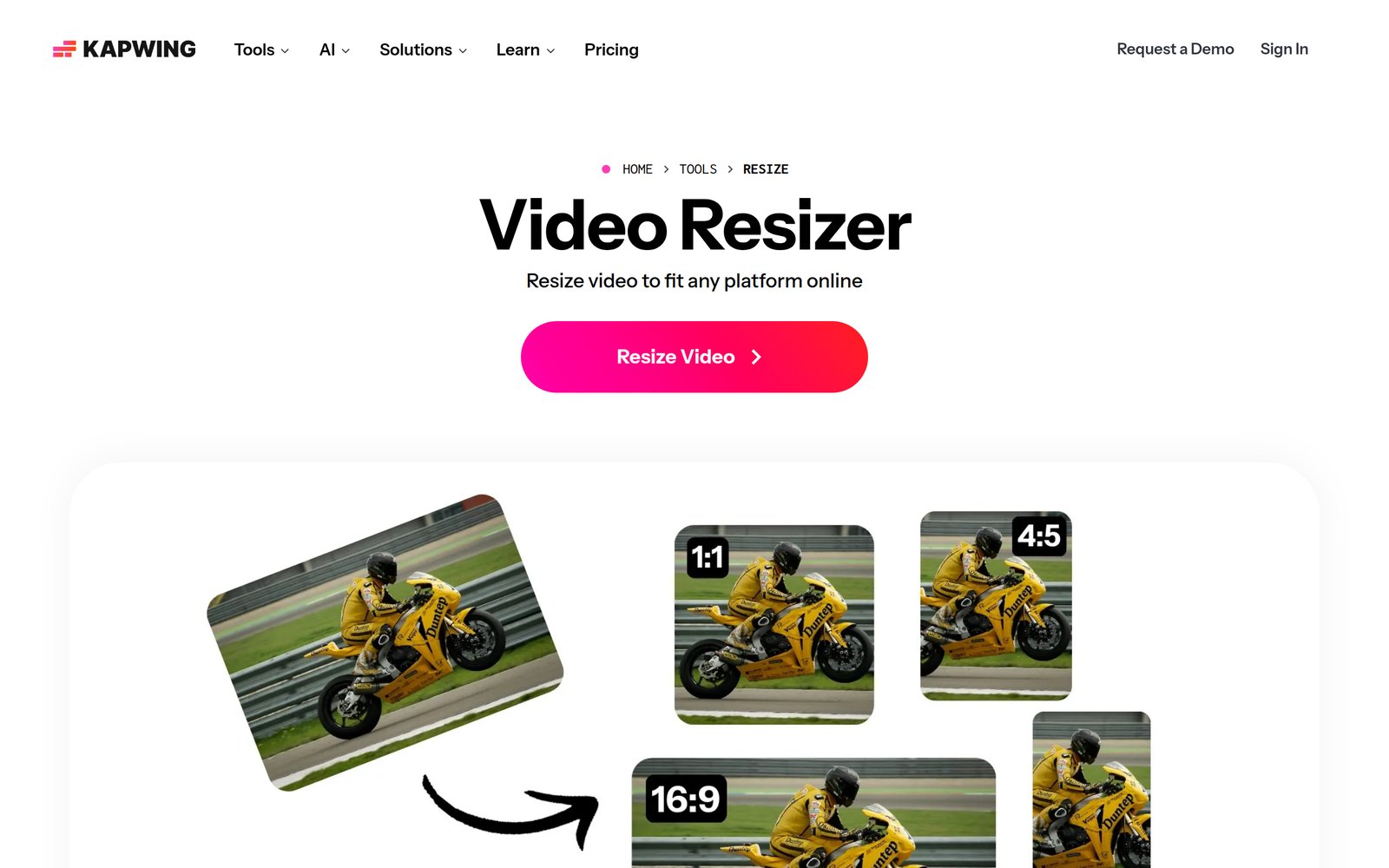
Browser-based tools like Kapwing's video resizer handle steps 1 and 2 without installing anything, generating 16:9, 9:16, and 1:1 versions from a single upload, which is useful if you're repurposing one piece of long-form footage across a standard video, a Short, and a thumbnail-worthy still.
Common YouTube Video Size Mistakes to Avoid
Most sizing problems fall into the same handful of buckets:
- Uploading a phone-shot vertical video as a standard upload. YouTube pillarboxes it with black bars on both sides instead of rejecting it, which reads as a mistake to viewers even though nothing technically failed.
- Manually adding black bars to "fix" an aspect ratio. This actively fights the player's automatic adaptation across devices and typically looks worse on mobile than an unpadded mismatch would.
- Exporting at 1080p with a bitrate meant for 480p. The resolution label is correct; the visible quality isn't, especially during motion.
- Uploading a 16:9 video edited down to under three minutes expecting it to appear as a Short. Shape decides Shorts eligibility, not length. Landscape footage never qualifies regardless of duration.
- Designing a banner for the full 2560x1440 canvas with no regard for the safe zone. It looks intentional on a desktop and accidentally cropped everywhere else.
Turn Your YouTube Audience Into a Business You Own
Getting every dimension right matters because YouTube is usually the top of a funnel, not the whole business. YouTube's ad reach alone sits north of 2.5 billion accounts, which is exactly why the platform rewards channels that convert some of that attention into something they own, rather than depending entirely on YouTube's own payouts. Once you've built an audience there, the videos themselves (tutorials, courses, behind-the-scenes breakdowns) are often worth more repackaged and sold directly than they are as another free upload competing for the algorithm's attention.
That's the gap Crevio is built for. Crevio's course builder supports video content the same two ways your YouTube channel already does: upload a file directly, or embed an existing YouTube, Vimeo, Loom, or Wistia video straight into a module, both locked to the same 16:9 aspect ratio your channel already uses, so footage you've already shot and sized correctly drops in without re-editing.
Crevio starts free, with paid plans at $20/mo and $50/mo as revenue grows, and transaction fees between 1% and 5% depending on plan, well below the effort it takes to build equivalent checkout and course infrastructure yourself. If you're already exporting videos at the right size for YouTube, turning a portion of that same library into a paid course launch is mostly a packaging decision, not a technical one.
FAQ
1920x1080 pixels at a 16:9 aspect ratio remains the standard for regular uploads. YouTube supports resolutions up to 8K (7680x4320), but 1080p is sharp enough for nearly all viewing situations and uploads significantly faster.
1280x720 pixels is the long-standing minimum at a 16:9 aspect ratio. YouTube's current guidance recommends going higher, up to 3840x2160, since the same image gets scaled to different sizes across search results, suggested videos, and the player itself.
Black bars (pillarboxing or letterboxing) appear when your video's aspect ratio doesn't match the 16:9 player. A vertical or square video uploaded as a standard video gets pillarboxed automatically rather than rejected. The fix is reframing to 16:9 before upload, not adding your own bars, which YouTube's own guidance says interferes with how the player adapts across devices.
Related Blog Posts
What will you sell today?
Describe what you want to sell — Crevio builds, launches, and grows it. Products, payments, and marketing, all on autopilot.
Start for free